PUBG Mobile Controller Support Status in 2026
PUBG Mobile controller compatibility remains unsupported in 2026 for Android and iPhone, ensuring fair play and preserving touchscreen-only gameplay.
For those who are curious as to whether PUBG Mobile features controller compatibility in 2026, the answer is "no" when playing on mobile. The developers of the game (Krafton) continue to not have any native controller functionality on iPhone or Android (even as there are many players who wish to create a console-like experience). The reason for this is that PUBG Mobile was built to use touchscreen controls as its primary method of control and in order to not provide the users of external-input devices an advantage in standard matchmaking — Krafton continues to maintain that standard of usage. There are other methods that users attempt to use to make controllers work with the game and there can be a significant difference in what can be classified as "possible" to what may be classified as "safe" as far as the use of controllers with PUBG Mobile are concerned.
PUBG Mobile's Controller Functionality As of 2026
The official position is no different. There is still no built-in controller support, no native gamepad menu, and no proper controller settings tab for either iOS or Android when using the mobile version of PUBG Mobile. In contrast to other FPS titles that provide some form of support for the gamepad (partial or otherwise), there is still no recognition of gamepad input through mobile phones when using PUBG Mobile.
This leads to the dominant misconception amongst players; pairing a controller with your phone does not equate to the game supporting a controller. Although it is possible to easily connect a DualSense controller or the Xbox Wireless Controller via Bluetooth, the dual analog inputs will not work within the confines of PUBG Mobile unless another application translates those inputs into touch controls once you launch the game.
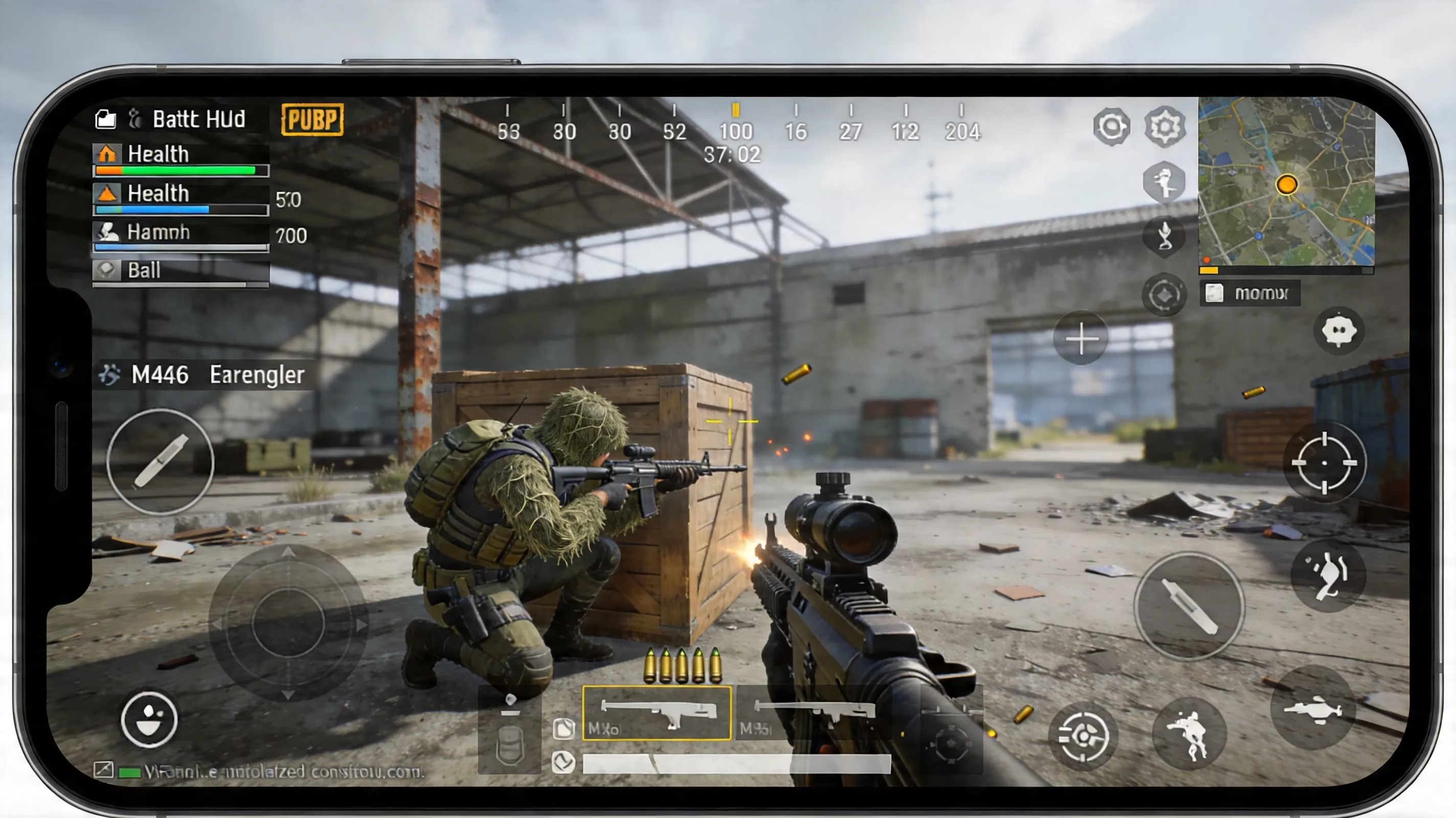
That last point summarizes the major hurdle. Your phone recognizes the controller at the OS level; however, PUBG Mobile itself does not support inputs from the controller. Inside of PUBG Mobile, the game will ignore your input since Krafton never decided to add in native gamepad support for the mobile client.
| Platform | Bluetooth Pairing | Native In-Game Support | Third Party Mapping Risk |
|---|---|---|---|
| Android | ✅ Works | ❌ No | High if mapper is used |
| iPhone (iOS) | ✅ Works | ❌ No | Very High/No safe way around it |
| PC Emulator (GameLoop) | ✅ Works | ✅ Yes | Low-Medium |
PUBG Mobile Controller Support for Android & iPhone
For Android, you have a little more leeway to try things out but not in a way that will affect the ultimate answer. On some devices, especially higher end versions of Samsung and OnePlus, a controller might get recognized during menus or system applications. That does not mean that PUBG Mobile has support built into it. In terms of getting actually into a game, the game does not recognize analog movement, triggers or button mapping in any way natively.
For iPhone, things are much more closed down. iOS does have support for controllers through Apple’s own development framework which includes MFi support as well as some newer Bluetooth pads like DualSense and Xbox. Having said this, it will only be useful if the publisher actually implements controller support; which PUBG Mobile has not done at all. In other words, the controller will pair correctly with the game, but once you get into your match, the controller has no value whatsoever.
The connection type doesn’t make a difference as well; both Bluetooth 5.0 can connect correctly on both platforms- Android also supports some wired USB-C controllers. While determining input for the title of a specific device is important when transferring from your home console, understanding how to utilize those transfers (or more simply, "how to connect") would be pointless if the device did not support this transfer method.
However, the addition of the new system in Version 4.3 has increased the chances of being discovered through anti-cheating measures and likely further restricts the ability to use various forms of input. Since we can assume that most of the anti-cheating measures tracked in the new system have been in place since just prior to the release of Season 4, they should identify different types of patterns over multiple play sessions.
Risks of Controller Use in PUBG Mobile
When trying to use a controller while playing PUBG Mobile, there are four different routes reported to have risks associated with them:
-
Low Risk — Using hardware trigger attachments on your mobile device; no problems injecting software into PUBG Mobile.
-
Low to Moderate Risk — Connecting to a mobile emulator via PC and then attaching a controller; will exist in a separate emulator lobby that does not connect directly to the standard lobby.
-
High Risk — Connecting to a mobile device via Bluetooth and using a mapper application; it will create input patterns detected by the anti-cheating system.
-
Extreme Risk — Using root and/or Shizuku to re-map your mobile device's inputs; injected patterns will leave your mobile device relatively unmarked.
Hardware trigger attachments should remain the cleanest way to play mobile games on a controller. Physical accessories, such as the GameSir F8 Pro, can simulate touching a part of your screen, typically when fires or aiming-down sights. The game recognizes this as normal touch input, meaning there is no software translation layer between the two types of inputs.
However, this is not the case with Bluetooth mapper applications (e.g. Octopus, Panda Gamepad Pro). These applications convert the input from your controller into simulated touch input. This is usually done using overlay permissions and can cause concern because of how exacting and repetitive each simulated touch will appear.
Using an emulator is different than the methods previously mentioned. When you are using GameLoop to play PUBG Mobile on a computer, controller support is built-in, and this is not considered a workaround to accessing your controller. The game recognizes that you are using an emulator and places you with other players who are also using emulators, so your matchmaking is fairly consistent.
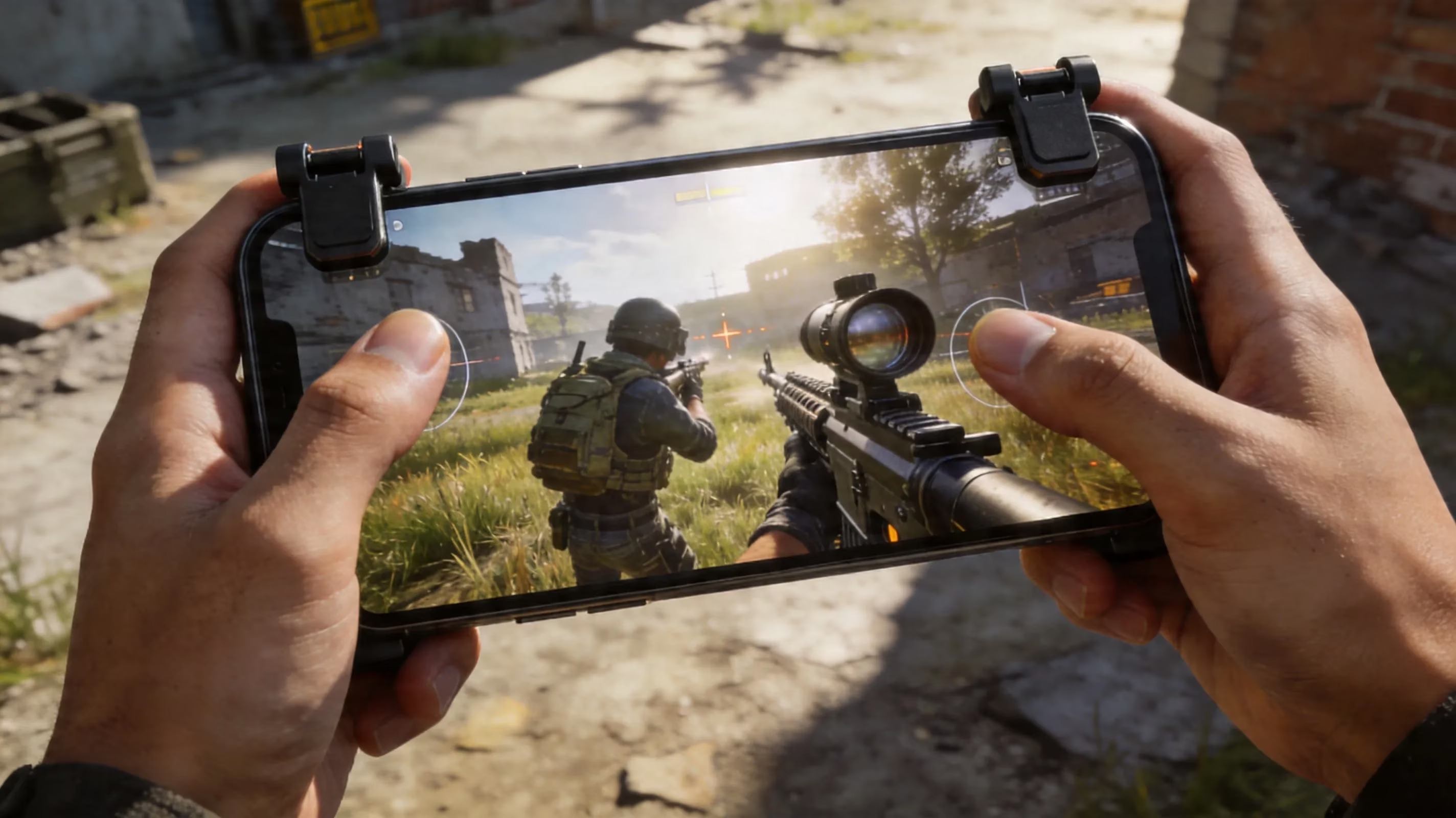
Hardware Trigger Setup
The appeal of using clip-on triggers is that they only act as mechanical touch tools and cannot be used as a means of spoofing your input, running input scripts, or requiring second-level permissions. The clip-on trigger simply presses against your screen where your finger would normally touch until the game registers the input as if you were touching it.
The biggest advantage that clip-on triggers provide is in a four-finger claw setup. With your thumbs focused on movement and camera control on your left hand, you can use your index fingers to shoot and aim. This allows for smoother gameplay when peeking around corners, spraying bullets, or repositioning during close-quarters combat, where using only two thumbs can become very difficult.
At the ranked level, you will be able to get away with using clip-on triggers as they will not provide you with any advantage when playing. Given that there’s not much here that makes me suspect an emulator/games work are involved in getting the account flagged for usage and that players have been known to use triggers all through Rank-High lobbies without being banned, there’s very little to say about this setup. There are a lot of options for triggers / controllers on those ranked lobbies, so I would expect a lot more people would use them if they thought they would get banned for it.
If you wish to have real controller compatibility, your best option is to use an emulator (GameLoop edition). GameLoop provides native controller support for PUBG Mobile while using the emulator. You can use your Xbox, PlayStation, or generic HID (Human Interface Device) connected via USB or Bluetooth and it’ll connect automatically without an issue. The controller mapping for your buttons is done using Smart Keymap (currently at version 3.1 for season 4.3).
To set up all of your buttons you will (1) use the left stick for Moving forward, (2) use the right stick for Looking, and (3) assign Fire, ADS, Reload, and all other functions to the emulator overlay. It’s worth noting that tuning your Deadzone is far more important than many people will lead you to believe. For example, I own a controller with Hall Effect sticks and a low deadzone, so my recoil control is much easier on that controller than someone using a cheap pad that has drift or mushy controls.
One negative to mention is the type of matchmaking when playing GameLoop. All of the GameLoop players will be placed in an Emulator only lobby, which is generally harder than traditional matchmaking. Players in your Squad that play on Mobile and are Matchmade with you will also be placed in the Emulator pools, which can suck for those players who were expecting to the Mobile matchmaking system.
Before playing any matches with your controller, it is important to confirm that your controller is set up properly. Keep your PUBG Mobile app up to date, ensure your phone or emulator has the latest updates, uninstall old mapper apps, and confirm you are not running overlay-based cheats like gaming overlays. Follow this UpToDate paragraph as it contains large amounts of potential "hack" through social engineering or exploiting player knowledge.
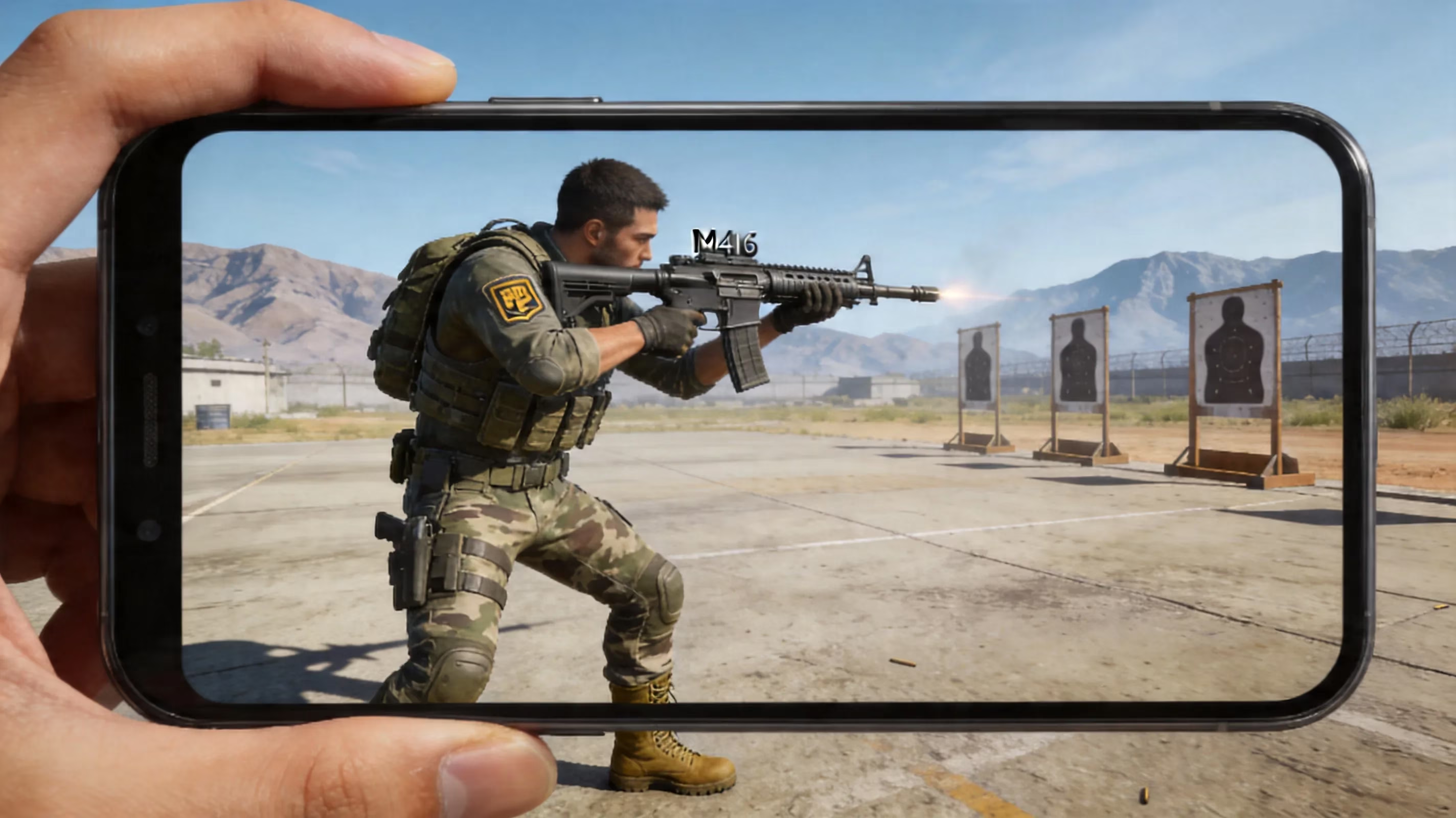
Secondly, before entering any real PUBG Mobile match, please spend some time and familiarise yourself with the Training Ground. 15 to 20 minutes of time is needed to check your button response times, trigger placement, and recoil control using weapons such as the M416 or AKM. You should NEVER find out that your trigger placement was a bit off when you are in the middle of a ranked match.
The placement of your HUD is much more important than most individuals think. If you use hardware triggers, the location of your Fire and ADS (Aim Down Sights) buttons on the screen must match where the triggers touch the screen. Even a small amount of misalignment could lead to a missed shot, or slow your ADS down when things become crazy.
There are many ways to avoid certain "anti-cheat" red flags:
-Avoid running overlay-permission apps when playing PUBG Mobile
-Avoid USB debugging enabled during gameplay
-Avoid using recoil scripts or auto-fire macros
-Avoid using mapper apps that have not been updated after a major patch
-Avoid remapping methods that use rooting or Shizuku.
Setup to be Safe on Android
For Android users, setting up the controller safely starts with normal Bluetooth pairing. Open your correct Bluetooth settings, place the controller into pairing mode, and connect the controller as you would normally to any Bluetooth device. If you would like, you may wish to check that the controller works in another app to verify that it works before launching PUBG Mobile.
The most important step in this process is what you DO NOT DO next. If your goal is to keep your PUBG Mobile account safe, it is not advisable to try out third-party mapper applications (Octopus, Mantis Gamepad Pro, etc.). When you pick up the controller and find out that you can play, that is a real risk to have your account banned. The safest options for Android users are to either use hardware triggers with your mobile device or to use the GameLoop emulator on PC.
All players should make sure their movement feels normal and the triggers are registering correctly in the Training Ground before queuing up for ranked matches. If your controller doesn't feel consistent, stop playing and adjust the position of the clip; doing this will greatly decrease the chance of having issues in a ranked match.
iPhone Users
Pairing your iPhone with your Xbox or DualSense controller is straightforward. Simply go to Settings > Bluetooth; enable pairing mode on your controller, and once it is in pairing mode, click the controller name to pair. Both the DualSense and Xbox controllers should pair seamlessly with iOS.
However, once you have successfully paired your controller with your iPhone, you still won't be able to use the controller because PUBG Mobile does not support native controller inputs on iPhone. Additionally, due to iOS' limitations, there are no reasonable workarounds to use a controller for playing PUBG Mobile on iOS devices. Consequently, despite your controller being paired, you will not be able to use a controller for PUBG Mobile.
For so many reasons, the easiest solution for iPhone players is to use hardware triggers if they want a way to play on mobile or to switch to a PC emulator if they want full controller compatibility. The gyro + trigger option works fantastically well for PUBG Mobile, is designed to be played using gyro controls, and is still within the design of how developers want players to use controllers when playing PUBG Mobile. ## The Top Alternatives for PUBG Mobile Without Using A Controller
Moving to four-finger claw from a two-thumb layout, rather than having some sort of controller, is generally the biggest advance for anyone staying mobile. The fact that you can now move, aim, shoot and scope at the same time represents a considerable improvement in your quality of life once the muscle memory becomes established.
Due to the prevalence of the gyro/trigger combo, most of the top-ranked players who have played in 2026 and later have opted to use that configuration rather than looking for a workaround for their controller. By simply tilting the phone, you can obtain precise aim corrections and are able to keep your thumbs free by using the triggers for both fire andADS, and become accustomed to this feel, which is very similar to that of a controller with respect to the precision expected by users of such devices, while also being free from the associated risk of the software.
Several items also provide players with more than they expect:
-
Phone Coolers - These will allow you to continue playing without throttling down to prevent heat exhaustion from long gaming sessions
-
Finger Sleeves - These will allow for better control over both swiping and flicking
-
Grip Attachments - These will help to minimize hand fatigue
-
Reliable Charging Equipment - This will help to ensure that you have unlimited power to keep you playing in ranked matches
Players that have already developed a comfort level with claw and gyro will likely want to avoid using a controller altogether. Forcing a controller configuration onto the game to compensate for a lack of hardware support will typically cause more problems than it will fix. For a majority of the mobile-first players, a better long-term solution is to continue to improve their touch mechanics rather than try to make the game fit into the manner it was never intended to use controllers with. #PUBG Mobile Controller Support FAQ
Does PUBG Mobile have controller support? No, as of 2026, there is no official native controller support on either Android or iOS for PUBG Mobile. While you can pair a controller with your device, it doesn't mean you'll be able to use it in-game.
Can controllers cause bans? Yes, depending on how you are using them. Using hardware triggers is relatively low risk as they are used in conjunction with physical touch. Mapper apps are a high risk, and remapping using either root or Shizuku is an even higher risk and poses a real threat of permanent account sanctions.
What is the best alternative to a controller? A four-finger claw method with gyro aiming and clip-on triggers is a viable alternative to a controller that is one of the most effective mobile configurations available and carries very low risk of account sanctions.
If full controller support is your primary concern, then your best option is to use GameLoop on a PC. If you want to remain within the true mobile ecosystem, then you would be better off using a claw setup and gyro than attempting to use a controller through one of the high-risk workarounds.
Conclusion
At this point in time, for getting better control over PUBG Mobile, the safest option to use is still four-finger claw plus gyro with hardware triggers on mobile or full controller support via GameLoop on PC. Both options are within supported use, or low-risk use, which is important if your account is at risk in ranked play.
The choice between playing on mobile or an emulator is simple. Mobile provides you the standard touch screen experience with a larger matchmaking pool; emulator provides proper controller support; however, you will be playing only with other emulator players. Neither option is automatically superior to the other; it rather depends on what you value most.
If you are working on ranked play within Seasons 4.3 and beyond, then the practical recommendation is very straightforward. Establish your four-finger claw set-up, calibrate your gyro sensitivity for each scope, and utilize hardware triggers if you want additional reliability on fire and ADS. This is the safest route, and by all means, it is the best return on investment over time.